Lock selection
With the lock selection tool you can lock an area to prevent it from accidentally being edited or deleted. To lock a selection select the area you want to lock with the selection tool, then click the lock selection button in the toolbar or by using the L keyboard shortcut.

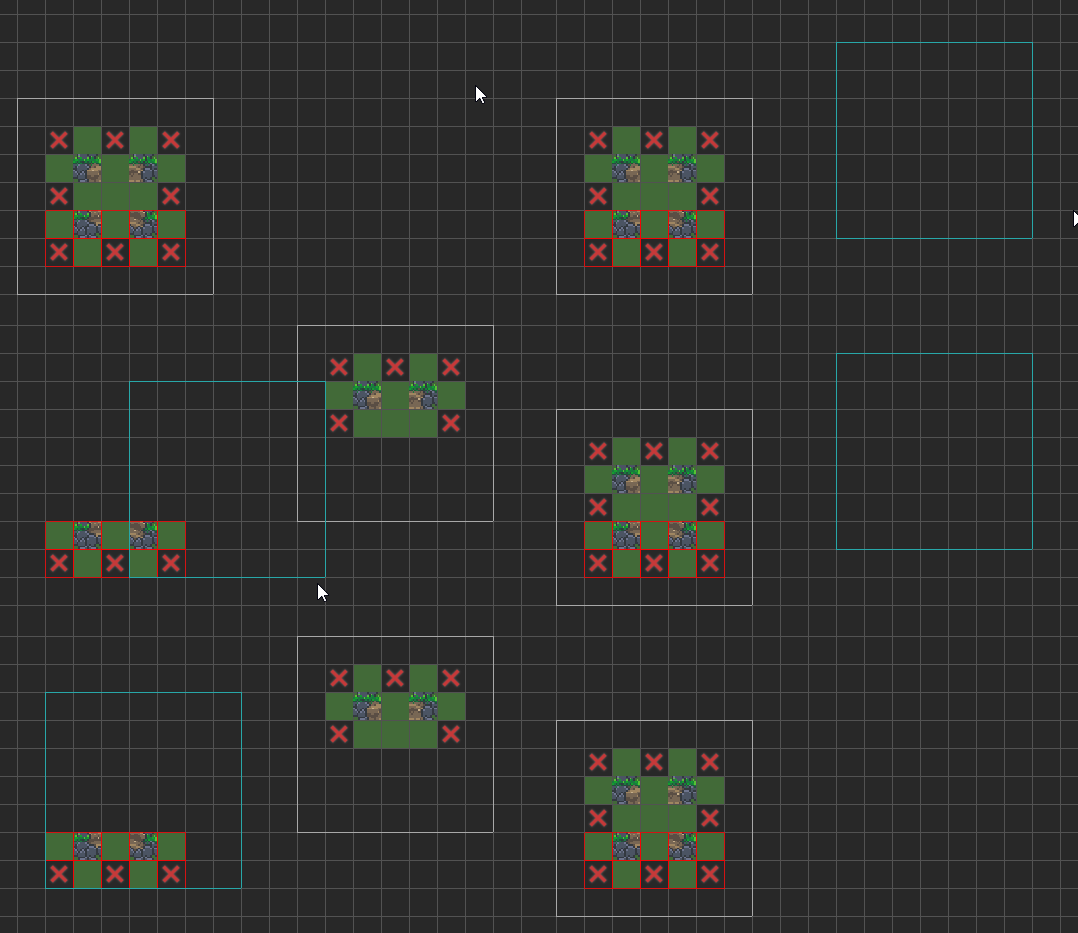
When a selection is locked, all the locked cells will be displayed with a red outline by default. You can change how the locked cells look in the editor settings.
When a cell is locked, it won’t allow you to modify the sprite or tile with the brush or eraser tools, and you won’t be able to move them with the move tool or delete them when pressing Delete.
Unlock selection
To unlock a selection just simply select them with the selection tool again and click the Unlock selection button in the toolbar, which is located right next to the Lock selection button. You can also use the U keyboard shortcut.
Locked cell options
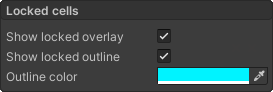
The appearance of the locked cells can be customized in the editor settings window. The available options are the following:
- Show locked overlay - Adds a striped overlay on top of locked cells.
- Show locked outline - Displays an outline around individual locked cells.
- Outline color - The outline color of the locked cells.