Import Window
When importing a sprite sheet, a texture sliced up to multiple sprites to the BRT Editor or the tileset editor, this window will show up. In this window you’ll be able to quickly adjust a few settings, which later would take significantly more time to accomplish.
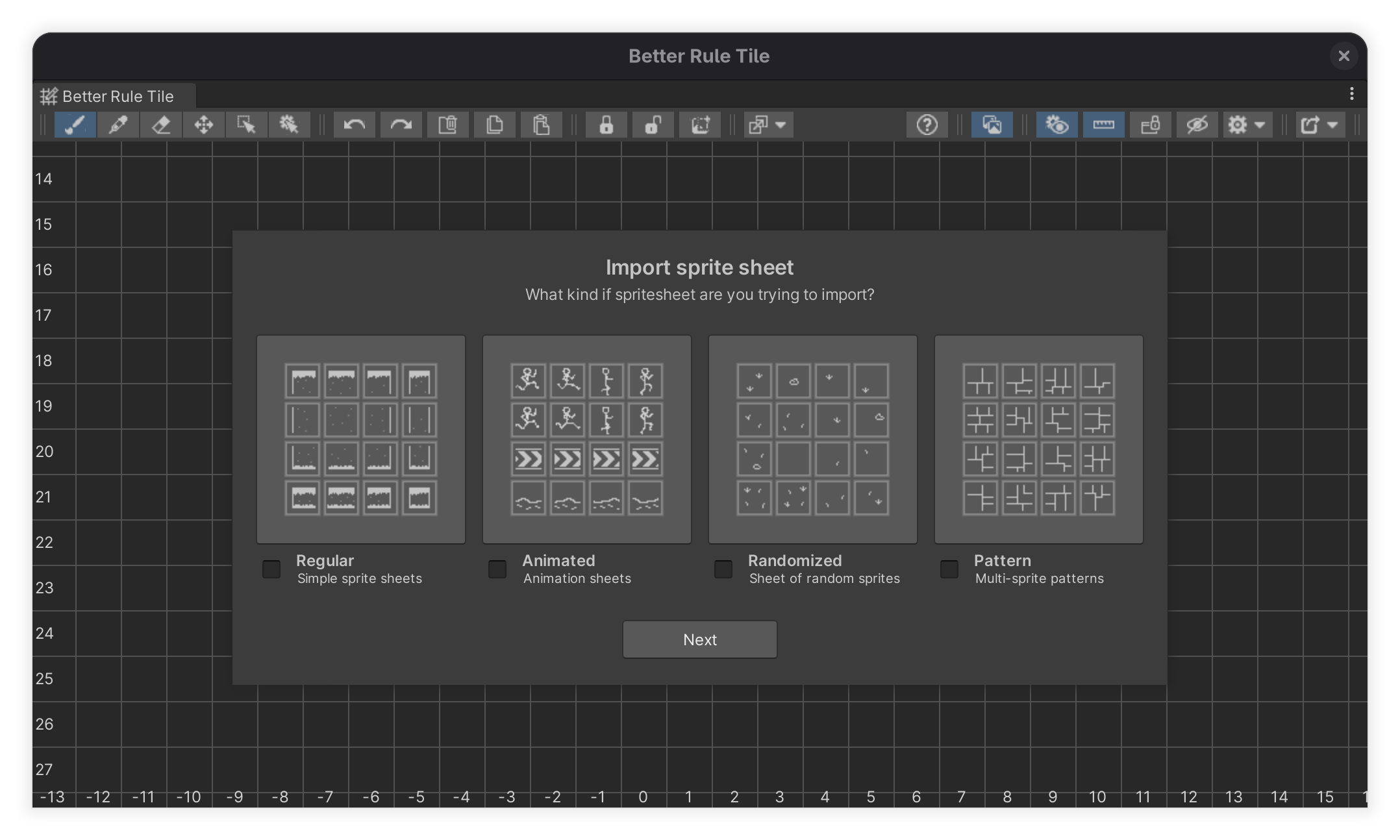
The window has 4 import modes:
Regular sprite sheet
The regular import option is the simplest way of importing a sprite sheet. Selecting this option will import the sprites as they are on the texture, keeping their positions relative to each other.
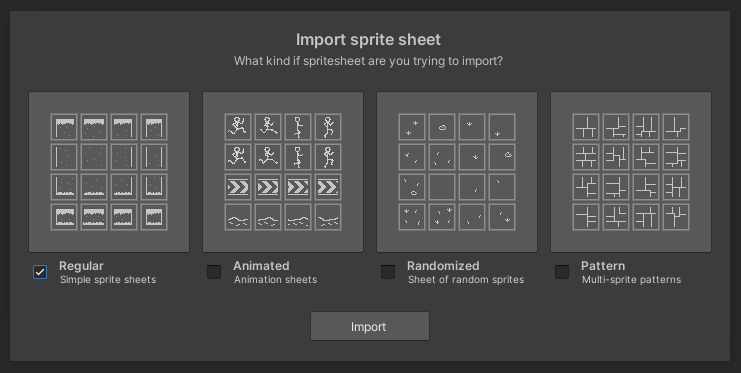
Animated sprite sheet
If your sprite sheet contains multiple frames of an animated sprite, the animation import option is the best place to set them up. Here you can set the seep of the animation, and the animation sequence.
To set up an animation, you’ll have to add a set of frames. One set of frames is always added by default. When doing this, the preview on the right will show the set of frames with an outline. Each set of frames will have a different colored outline, so you can easily distinguish between them.
You can set up the animation by positioning Frame#0, and than selecting the direction where the frames continue. If a frame contains multiple sprites, the animation will consist of the sprites that correspond to the same position in each frame. In the picture below for example, the left-most sprite in frame #0 will contain 6 sprites in total, the left-most sprite from #0, #1, #2, etc.
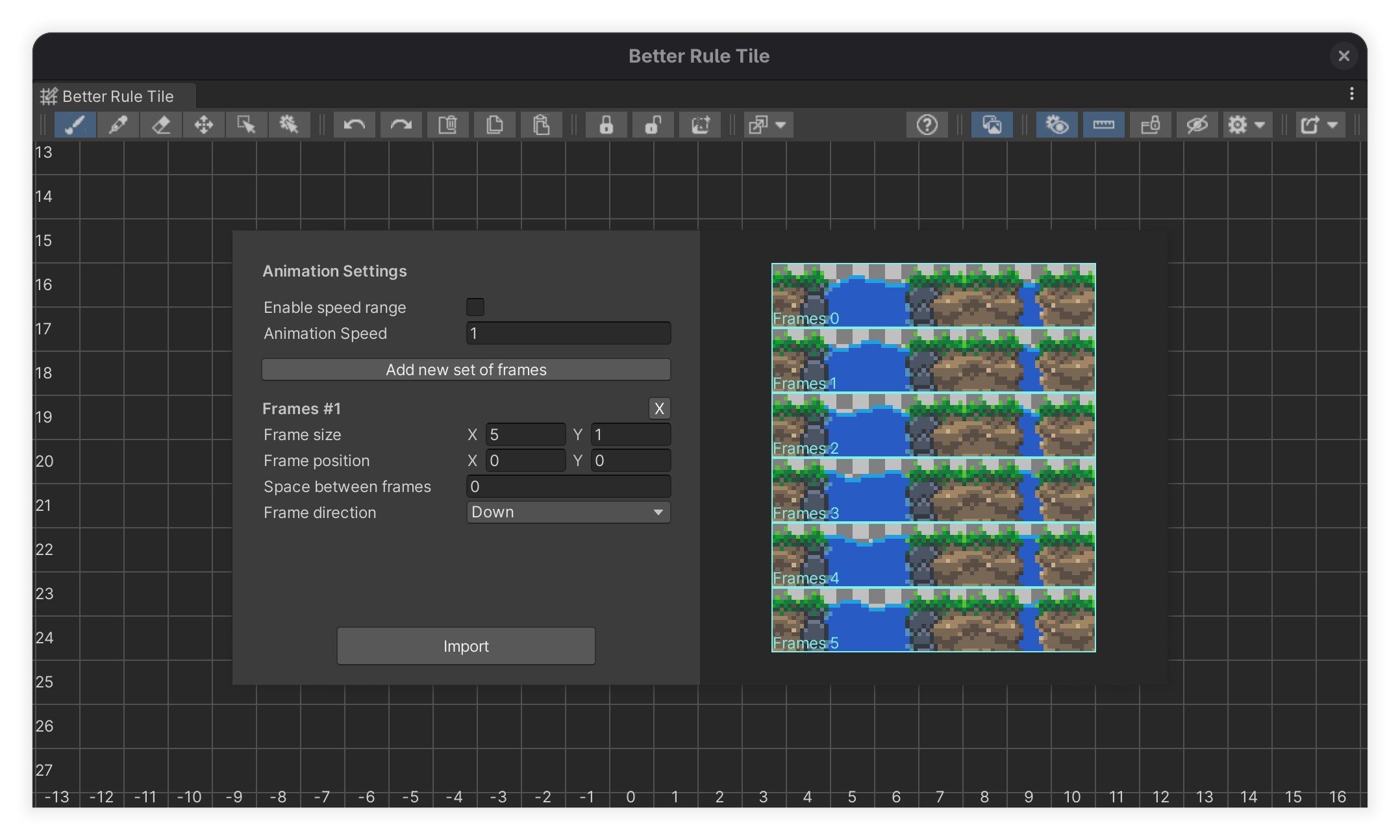
You can add additional set of frames if your sprite sheet contains multiple animation which cannot be set up with a single frame.
When pressing import, only the sprites from frames #0 will be imported, and the sprites from the rest of the frames will be added to the animations of the imported sprites.
Randomized sprite sheet
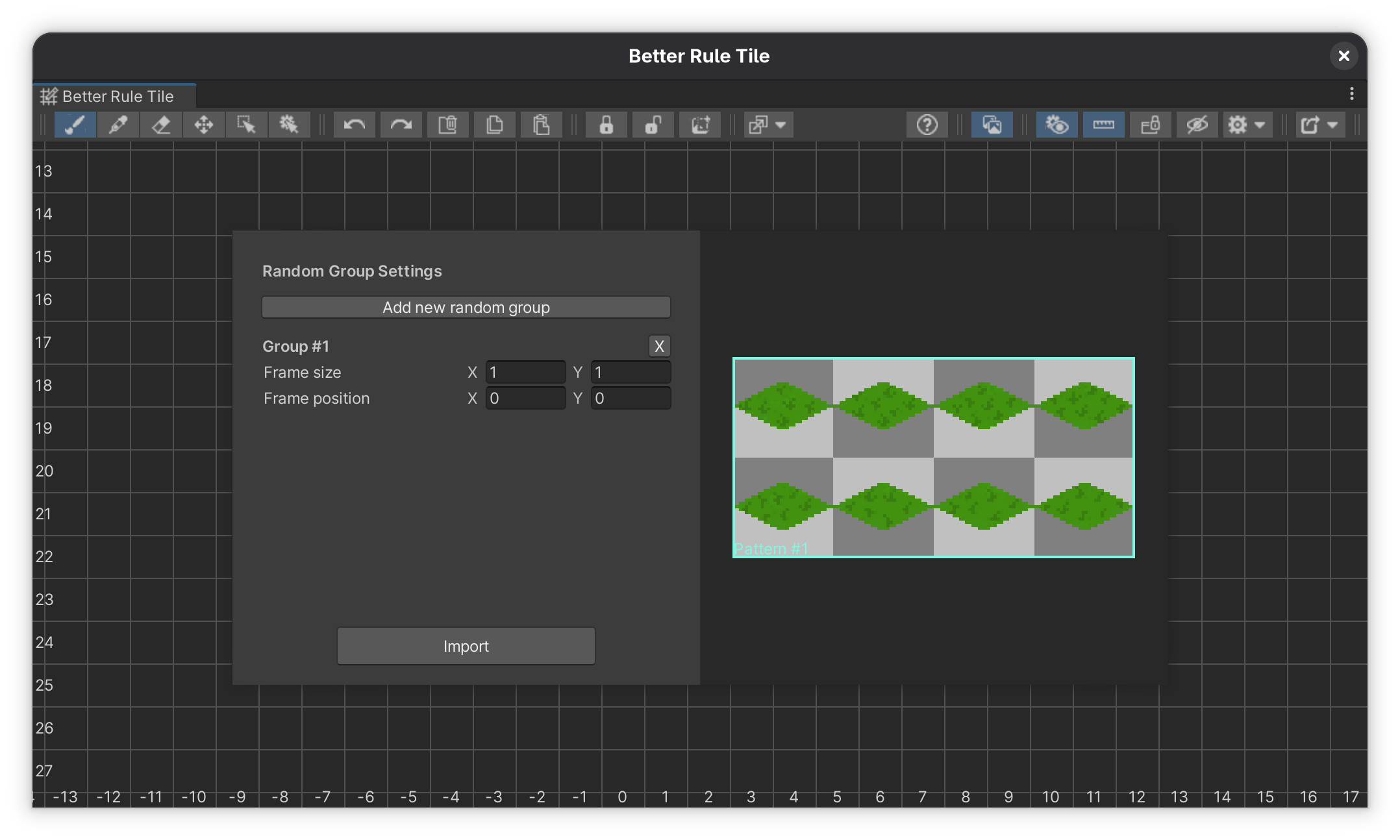
When you have multiple random variations of the same sprite inside a sprite sheet, you can use the random import option to import those random variations together.
In this window, you can create and position one or multiple random groups, which you can preview on the right side of the window. From each group, only the first sprite will be added to the grid, and the rest of the sprites from the same group will be added as random variations to that sprite.
Pattern sprite sheet
If the sprite sheet you are importing is a larger repeating texture that spans across multiple tiles, you can use the pattern import option to make it easier to import it.
By default the entire image will be selected as one single pattern, you can change this if it doesn’t match your texture, or you can add multiple patterns if the texture contains more than one.
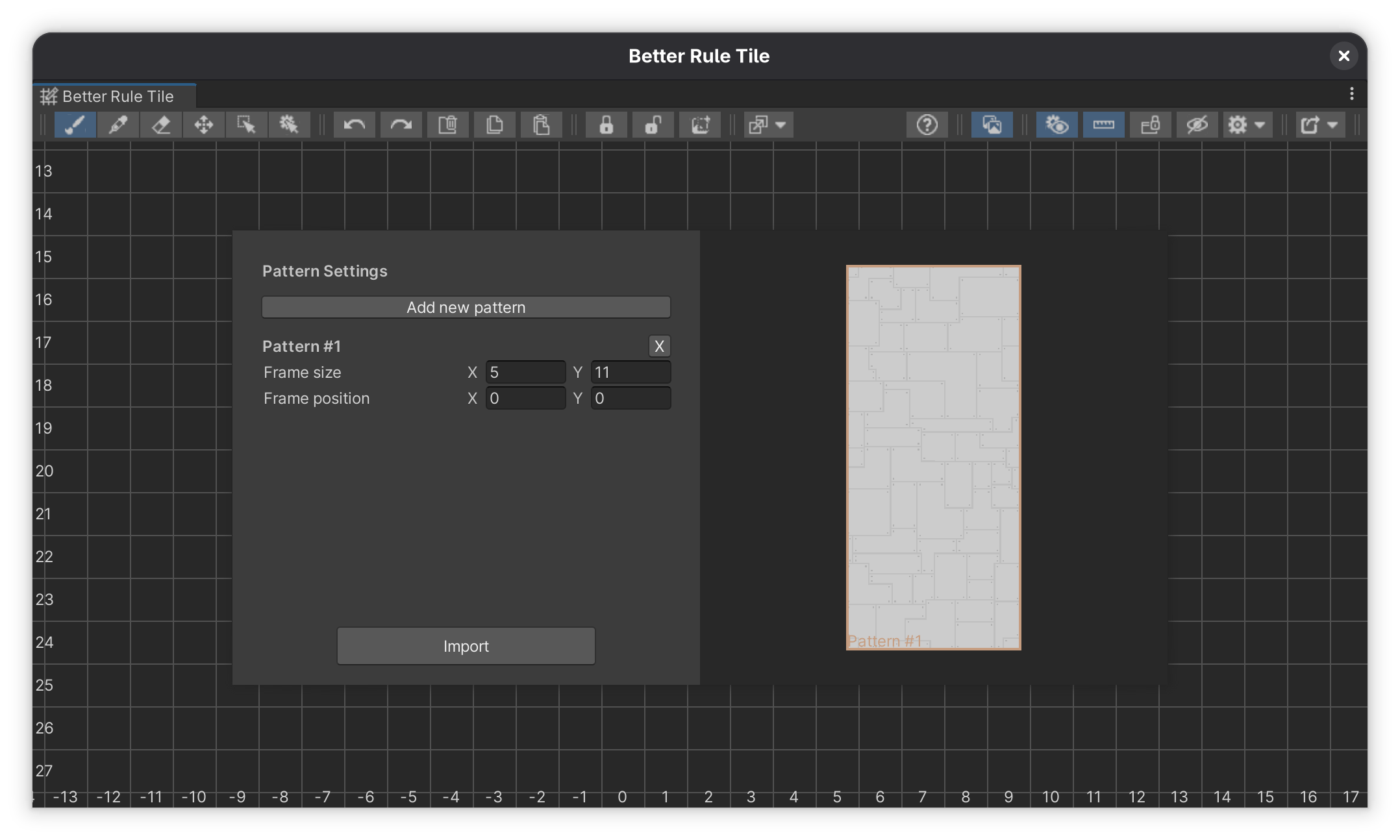
When pressing import, only the first sprite from each pattern will be imported, and the rest will be added to that sprite as a pattern.